
Learn how to extract text from documents, convert it to speech, translate, summarize, and edit with AI assistance using our powerful all-in-one tool.
🚀 Try the Tool NowGet started with Smart OCR & TTS Tool in just a few simple steps:
Drag and drop your PDF, image, DOCX, or text file onto the upload area or click to browse your files.
Use our AI-powered OCR to extract text from your documents with up to 99% accuracy.
Clean, punctuate, translate, summarize, or extract keywords from your text using AI.
Listen to your text with premium TTS voices or export in various formats including searchable PDF.
Extract text from PDFs, images, and documents with industry-leading accuracy using both traditional OCR and AI vision.
Process PDFs, images (JPG, PNG, WebP), DOCX, TXT, and MD files with a single tool.
Get up to 99% accuracy with our advanced AI-powered text recognition for complex documents.
Extract text in 100+ languages including English, Hindi, Spanish, French, and many more.
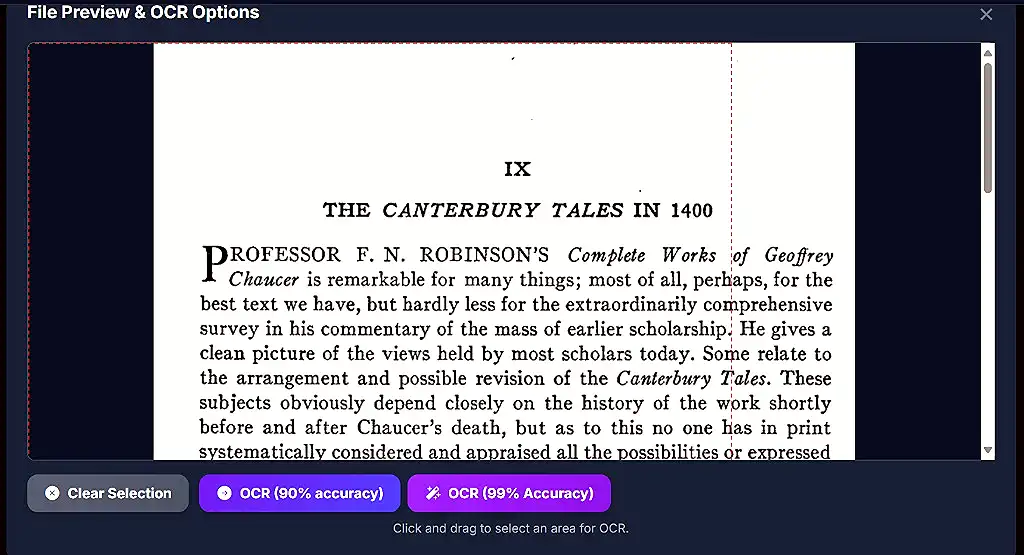
Draw a selection area to extract text from specific parts of documents or images.
Process multiple pages or documents in sequence with our efficient batch system.
Maintain original formatting, line breaks, and structure from your source documents.
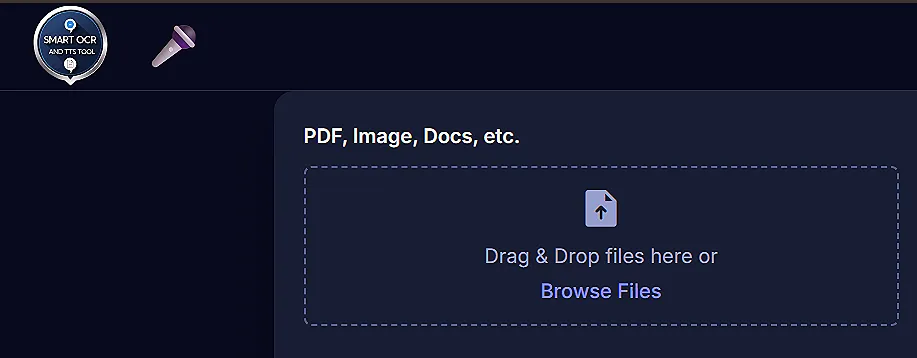
Drag and drop your file onto the upload area or click "Browse Files". Supported formats include PDF, JPG, PNG, DOCX, TXT, and MD.
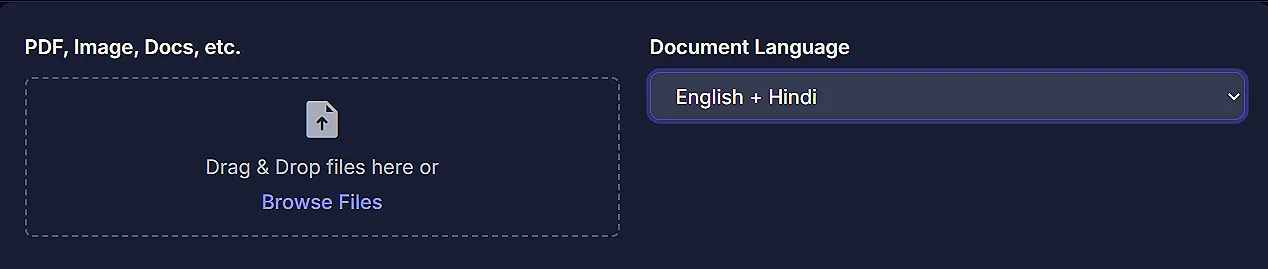
Choose the language of your document from the dropdown for optimal OCR accuracy. You can select multiple languages like "English + Hindi" for bilingual documents.
For images and PDFs, you'll see a preview where you can:
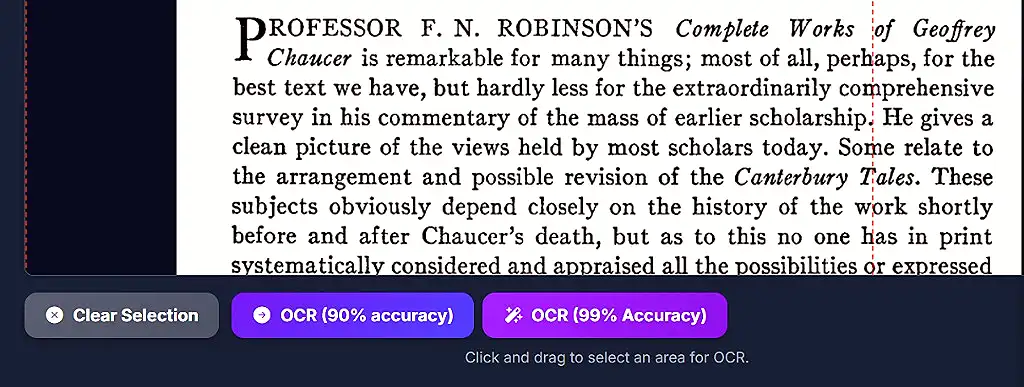
Select your preferred OCR method:
The extracted text appears in the Text Input area where you can further process it with AI tools or format it for TTS.
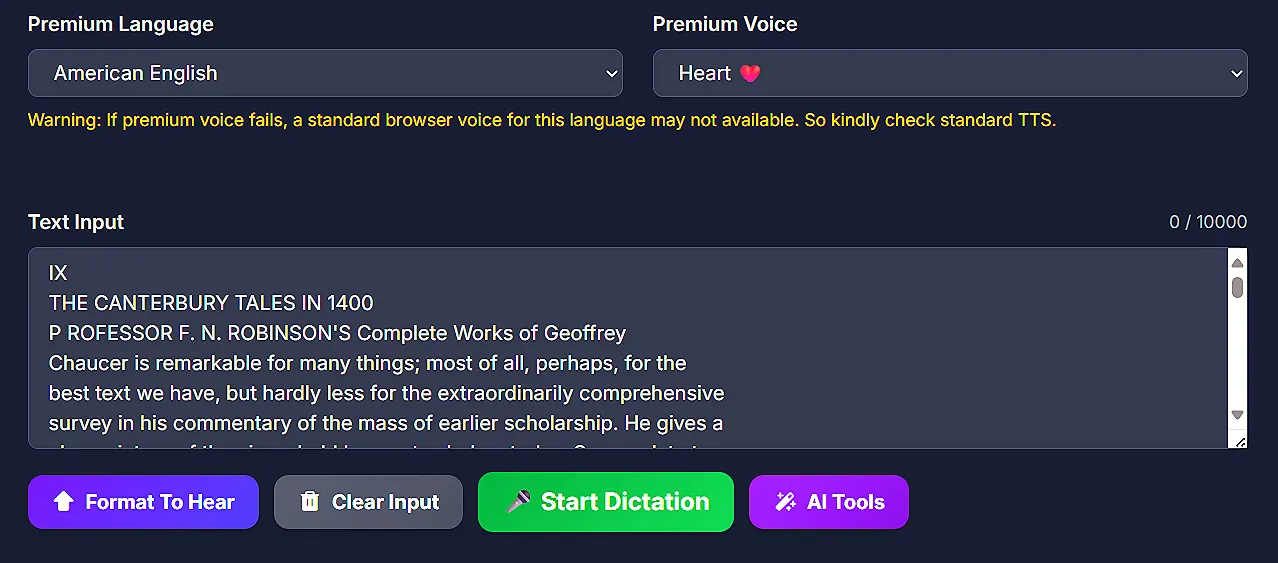
Convert text into high-quality, human-like speech using a modern 4-layer voice engine. From instant browser playback to premium multilingual voices and zero-shot voice cloning, the system adapts to both quick listening and professional audio creation workflows.
Unified system combining instant playback, premium voices, expressive synthesis, and zero-shot cloning for flexible performance across all use cases.
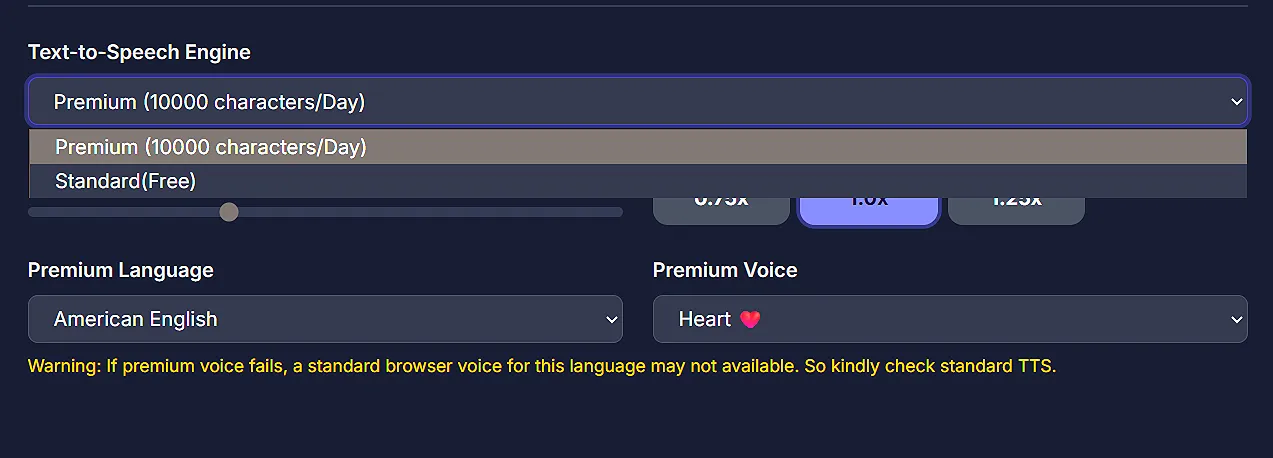
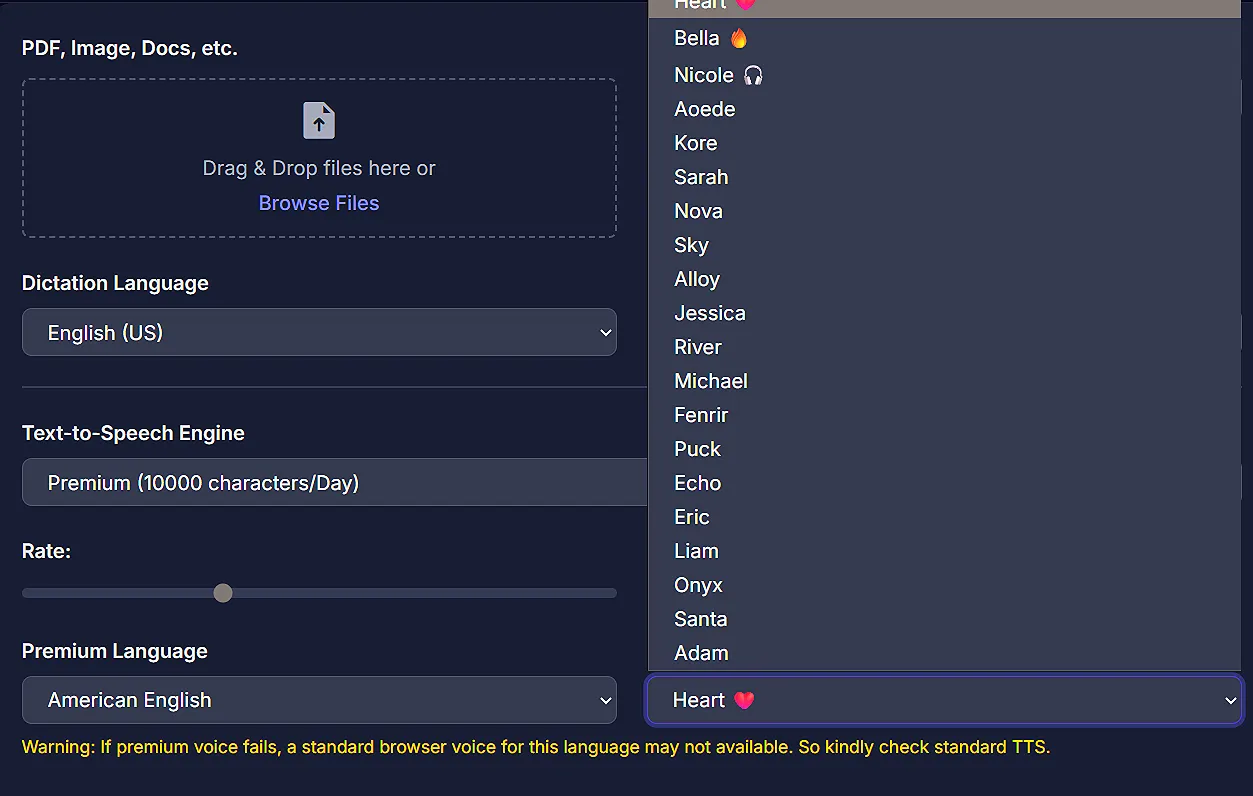
Access 50+ natural voices across multiple languages with 20,000 free characters/day and unlimited premium generation for high-quality narration.
Generate custom voices from 5–20s audio samples or use built-in models. Includes 10,000 characters/day for cloning with identity-level consistency.
Add human-like reactions using tags like [laugh], [sigh], [cough] to enhance realism and storytelling depth.
Instant MP3 streaming for fast playback or WAV export for high-quality production-ready audio downloads.
Real-time word highlighting, intuitive playback controls, and fine-tuned speed and pitch adjustments for precise listening.
Ensure your text is ready in the "Formatted Text" area:
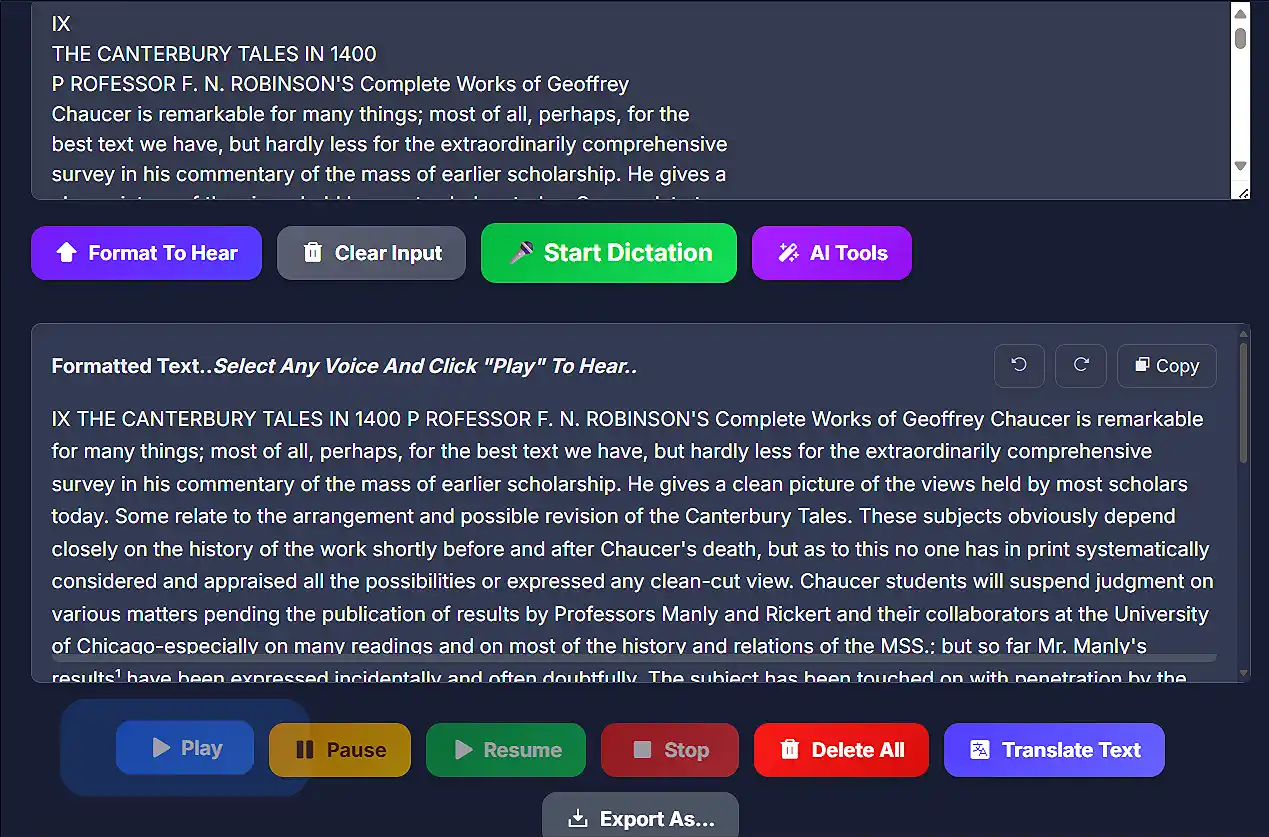
Choose the appropriate generation mode based on your need:
Customize voice behavior and input method:
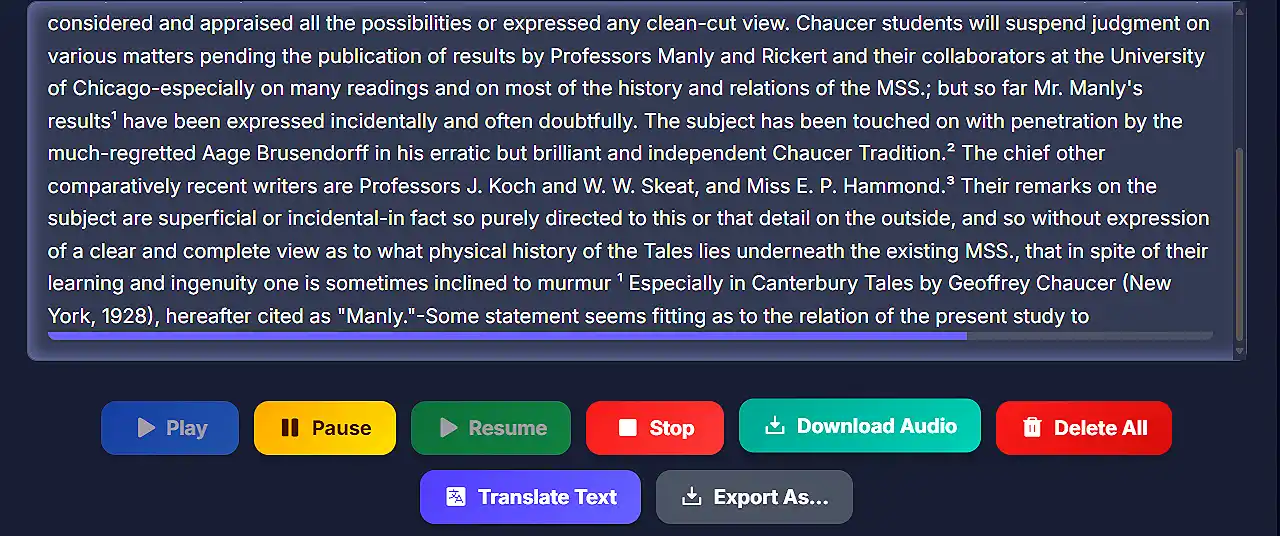
Interact with generated audio in real-time:
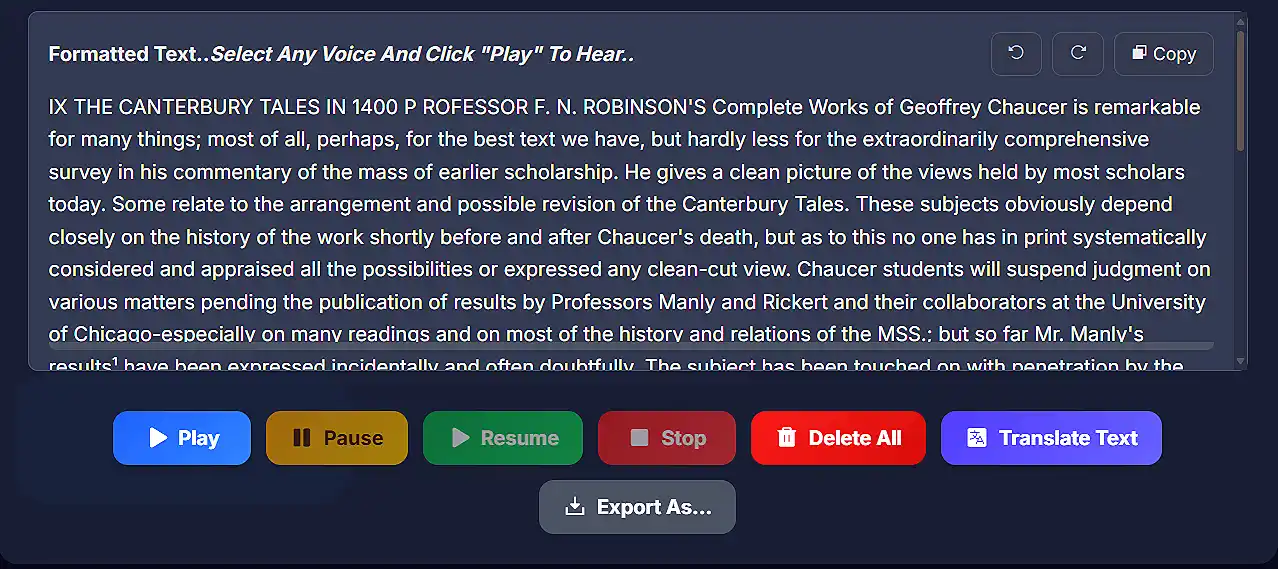
Download your generated output based on your needs:
Enhance, translate, summarize, and extract insights from your text with advanced AI capabilities.
Automatically fix line breaks, hyphenation issues, and formatting problems from OCR.
Add appropriate punctuation to unformatted text while preserving original meaning.
Fix grammatical errors, spelling mistakes, and improve writing quality.
Translate text between 50+ languages with context-aware accuracy.
Generate concise summaries of long documents while preserving key information.
Automatically identify and extract important keywords and phrases from text.
Ensure your text is in the Text Input area. You can:
Click the "AI Tools" button to reveal the dropdown menu with all available AI functions.
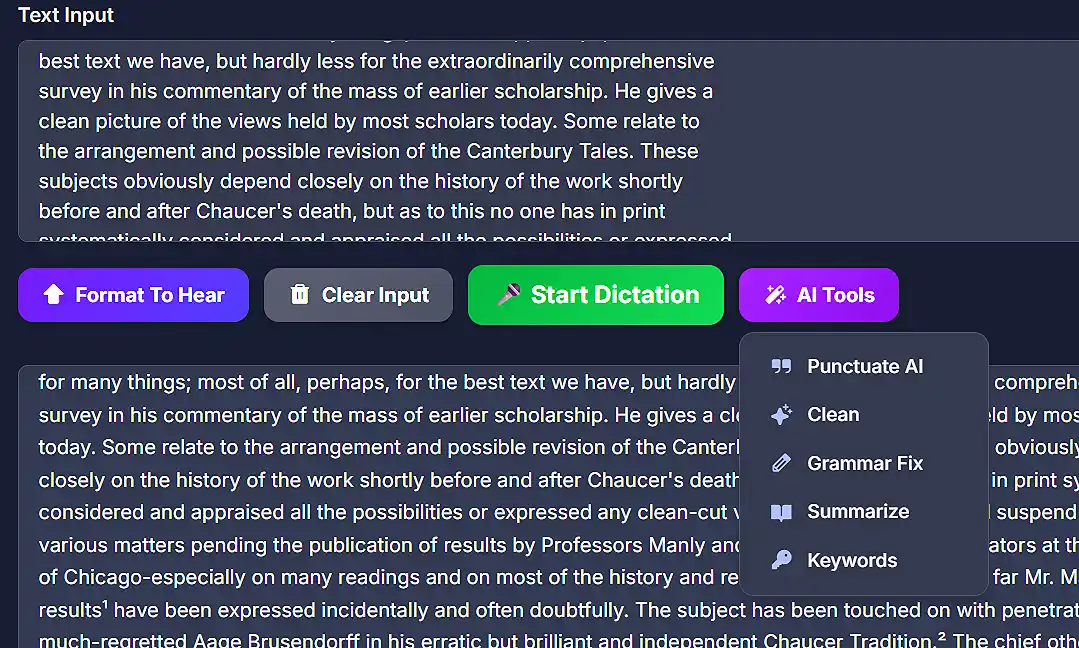
Choose from:
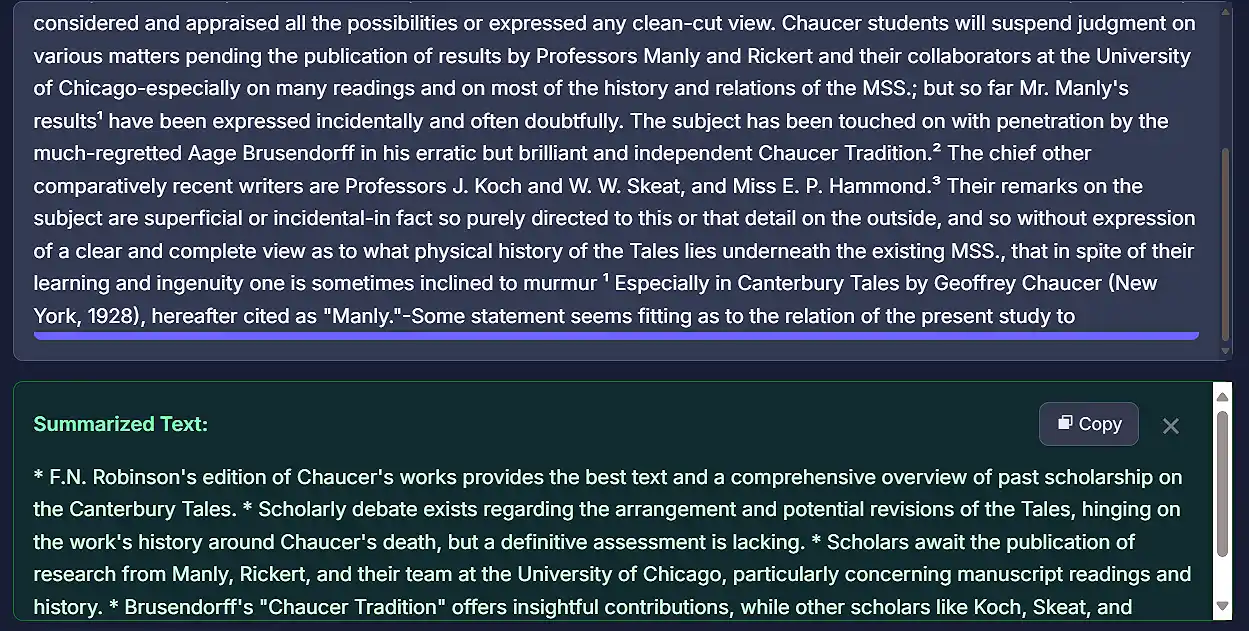
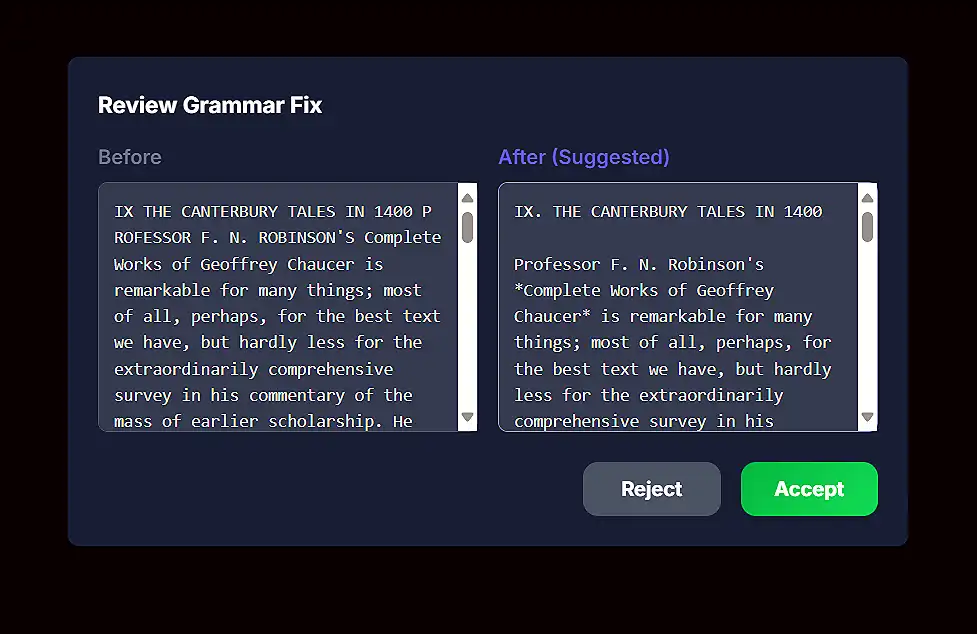
For some AI functions like Grammar Fix, you'll see a comparison view where you can:
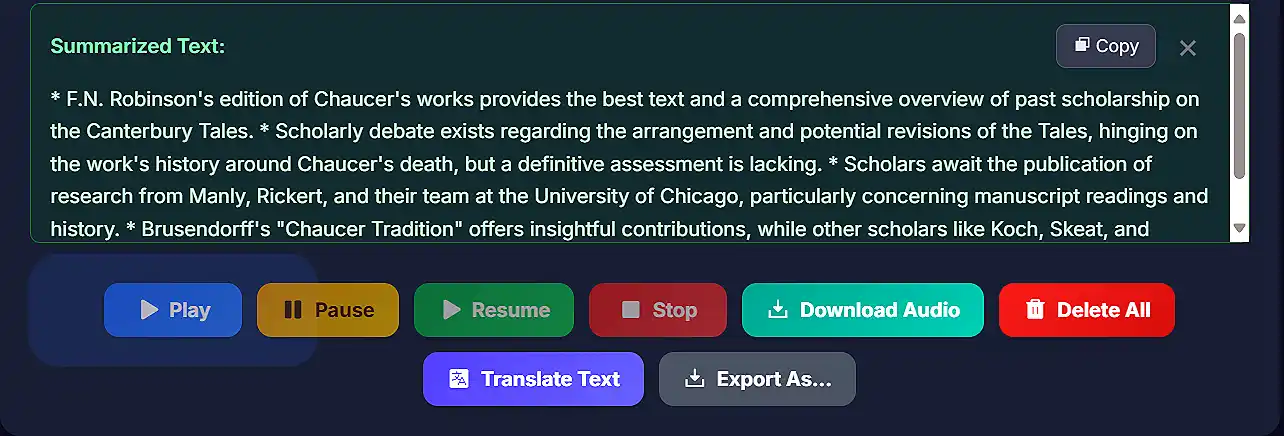
After translation or summarization, the results appear in dedicated panels where you can:
Compose, edit, and format documents with our rich text editor and export to searchable PDF.
Format text with bold, italics, lists, headings, and more using our Quill-based editor.
Import DOCX, TXT, MD files, or extract text from PDFs/images directly into the editor.
Export your documents as searchable, formatted PDF files with preserved formatting.
Full editing history with unlimited undo/redo capabilities.
Track word count, character count, and reading time as you edit.
Your work is automatically saved in browser storage to prevent data loss.
Scroll to the Document Editor section at the bottom of the application.
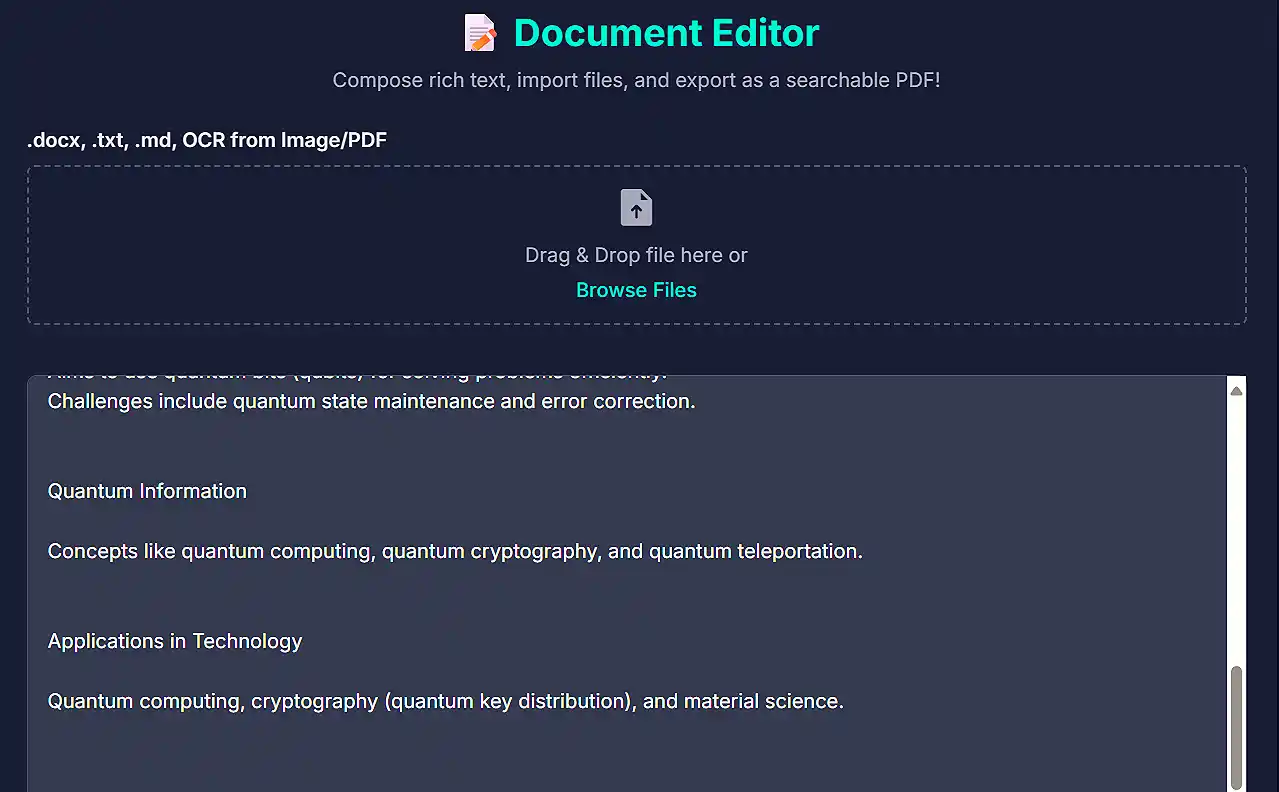
You have two options:
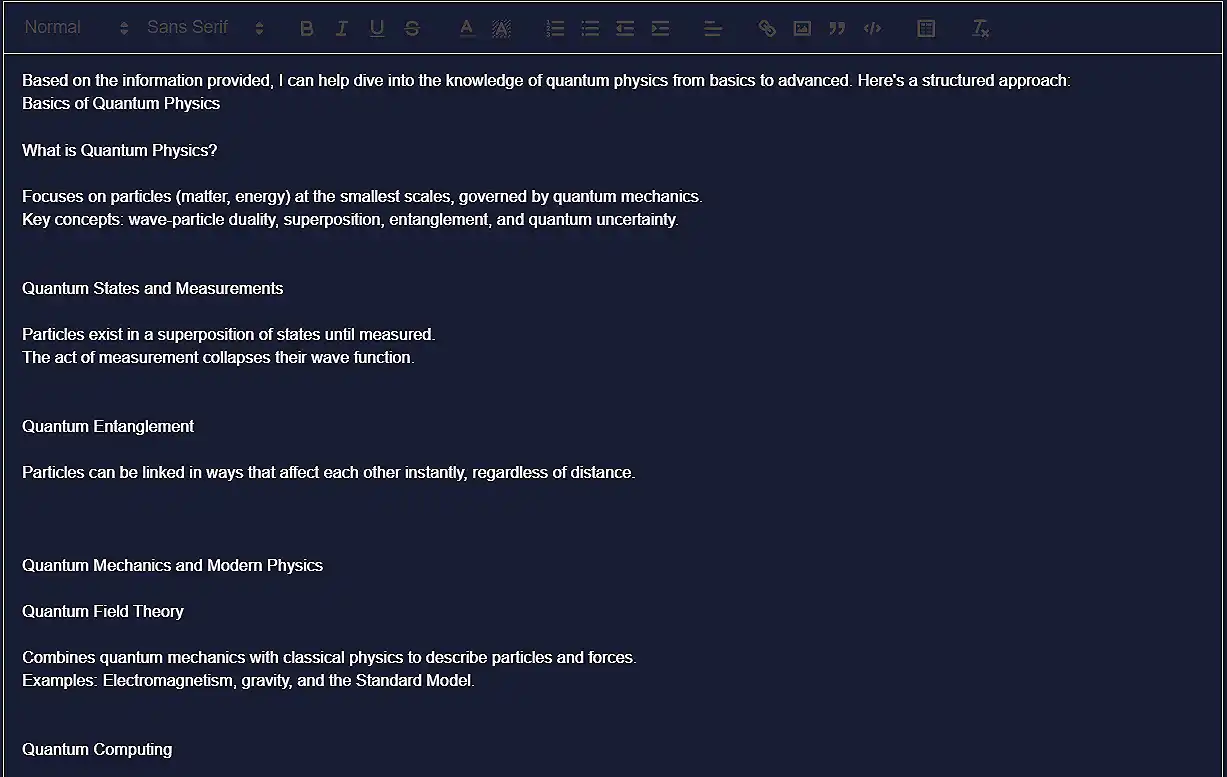
Once the editor is active, use the toolbar to:
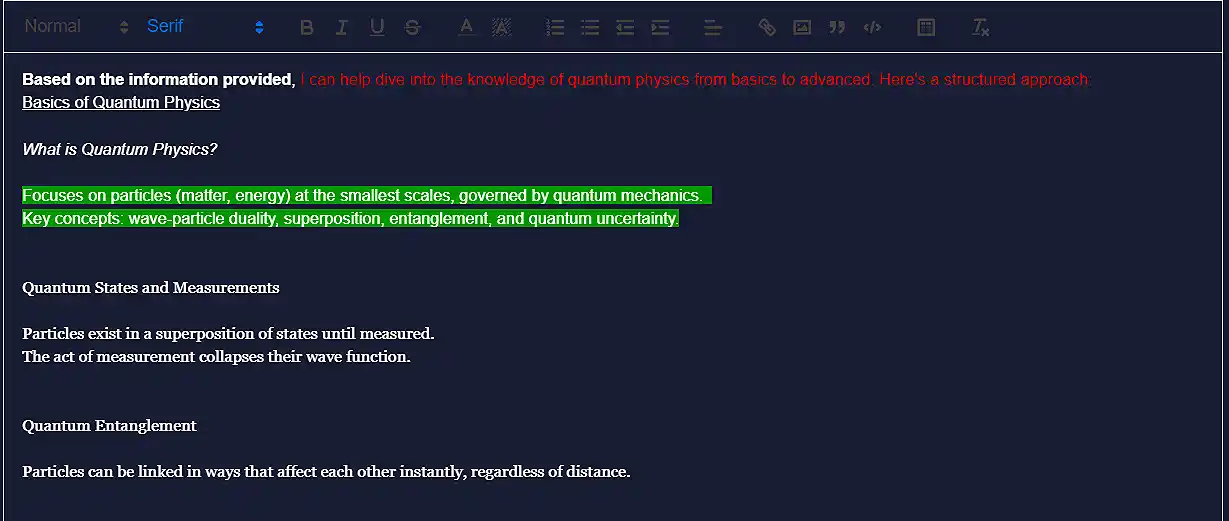
Utilize the editing buttons:
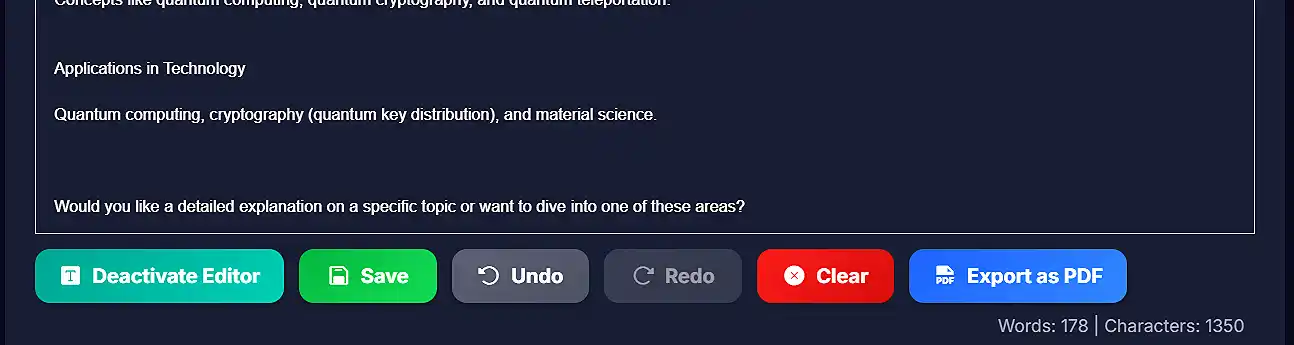
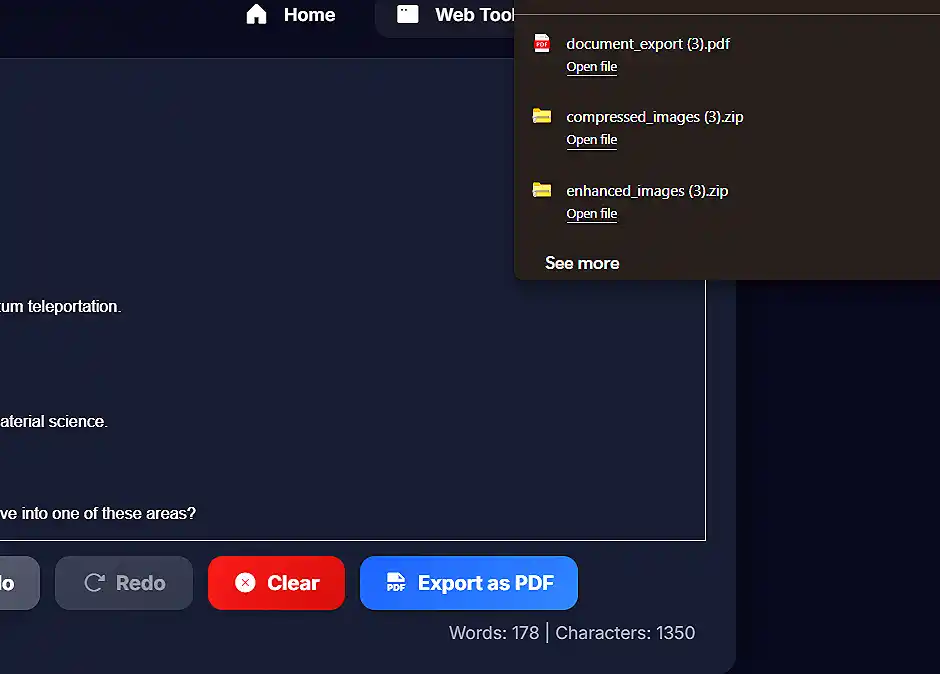
Click "Export as PDF" to generate a searchable PDF document with your formatted content.
Get help, ask questions, and interact with your documents using our AI Assistant powered by advanced language models.
The AI understands your current document content when context is enabled.
Ask questions about your uploaded documents and get intelligent answers.
Have natural conversations with follow-up questions and clarifications.
Save your conversations for future reference or documentation.
Get relevant follow-up questions and topic suggestions based on your conversation.
Get help with writing, research, analysis, coding, and more.
Scroll to the "Smart OCR & TTS AI Assistant" section in the application.
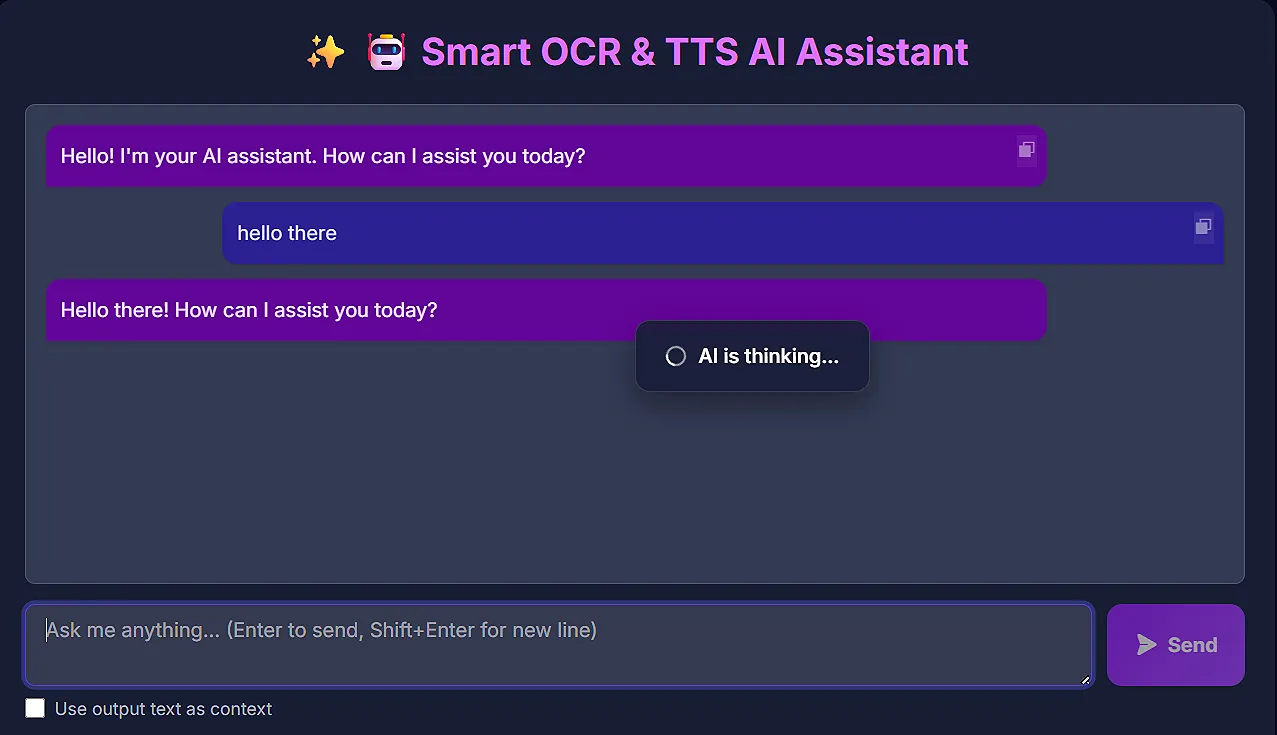
Toggle "Use output text as context" to allow the AI to reference your current document.
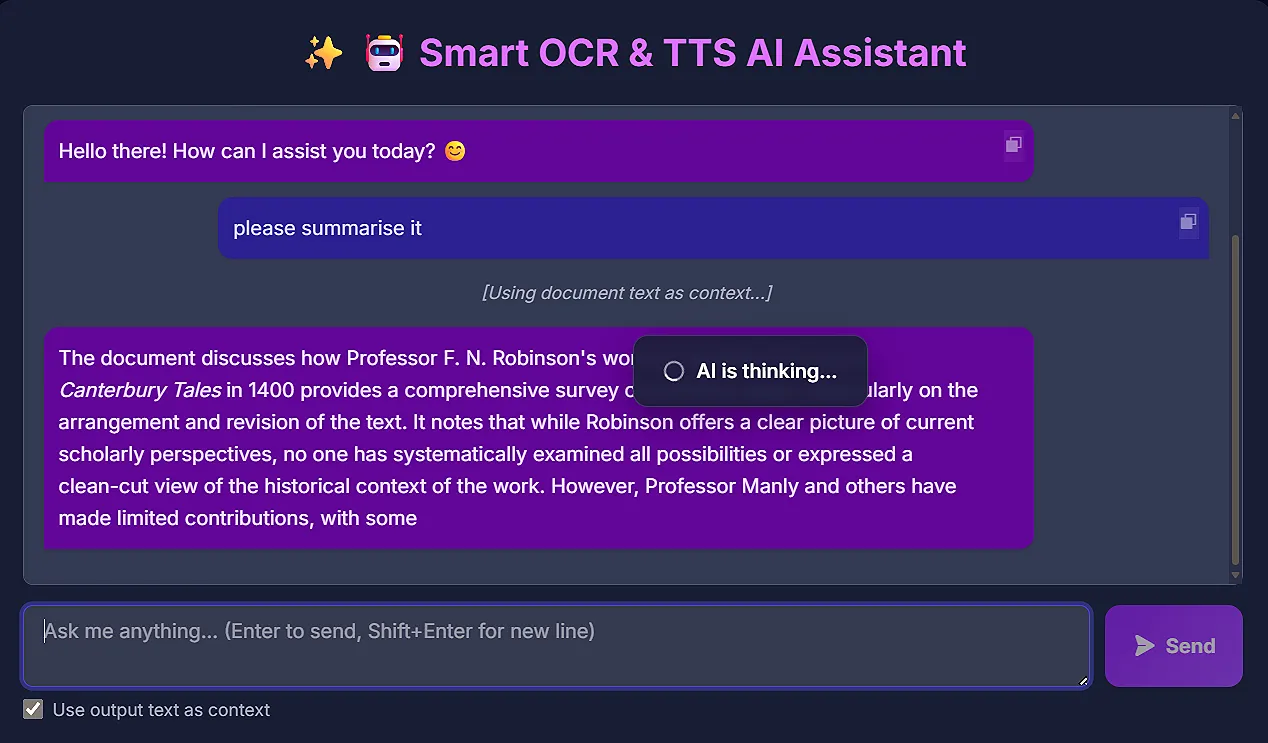
Type your question or request in the chat input area. You can ask about:
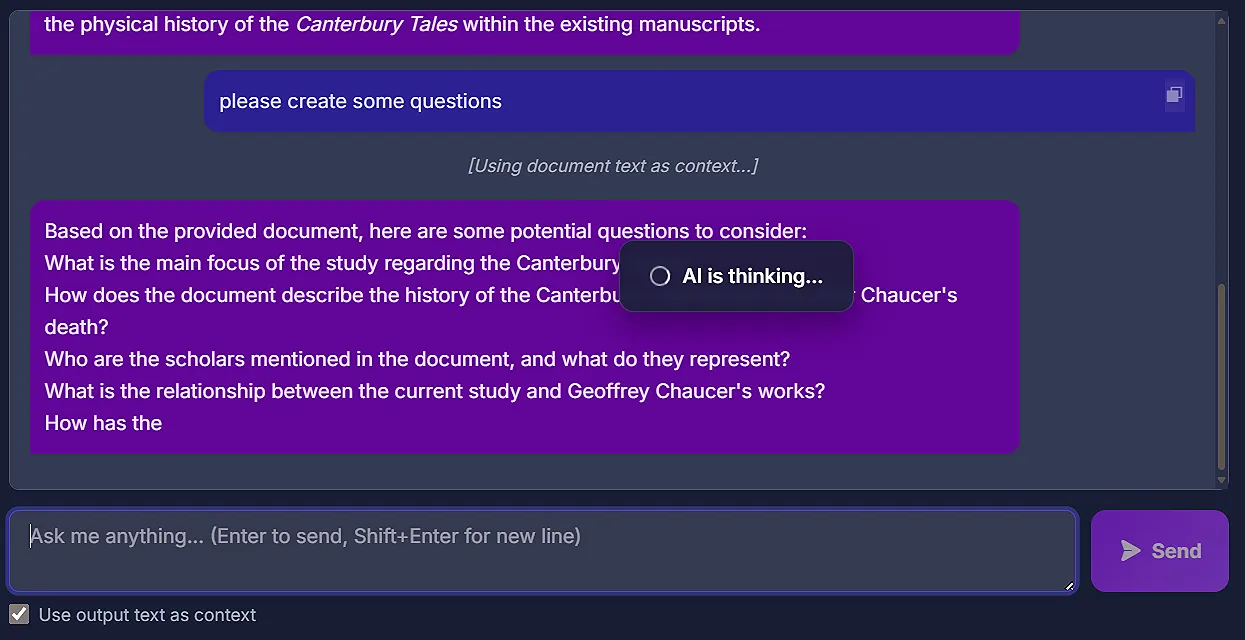
Click "Send" or press Enter to send your message. The AI will generate a response that appears in the chat history.

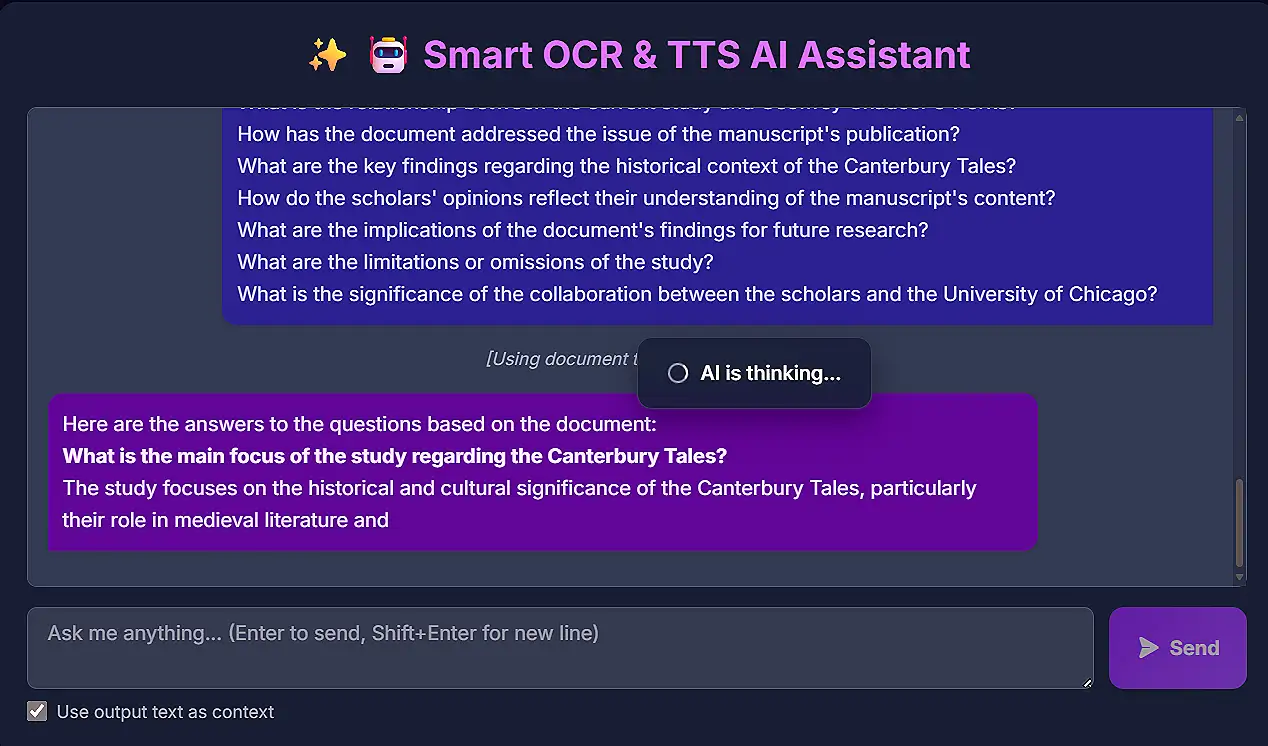
Ask follow-up questions or request clarifications. The AI maintains context throughout your conversation.
The OCR feature supports PDFs, images (JPG, PNG, WebP), DOCX documents, and text files (TXT, MD). For best OCR results with images, use high-resolution images with clear text.
We offer two OCR options:
Accuracy depends on document quality, text clarity, and language complexity.
Our platform provides a multi-layer TTS system, each designed for a specific need:
1. Standard TTS (Instant / Browser-based):
2. Premium TTS:
3. Expressive TTS (Emotion Layer):
4. Zero-Shot Voice Cloning:
In summary: Standard = speed, Premium = quality, Expressive = emotion, Zero-Shot = custom voice identity.
Yes — you get detailed control across all TTS layers:
For Premium & Expressive TTS:
For Standard (Instant) TTS:
Advanced Control: Use Zero-Shot Voice Cloning by uploading or recording a 5–20 second sample to define voice identity.
Pro Tip: Best results come from balanced speed + subtle expressions rather than extreme settings.
Yes — the platform is free with generous limits:
Note: Premium and Zero-Shot limits ensure fair usage while keeping the platform accessible to everyone.
Recommended file sizes for optimal performance:
Note: Very large files may take longer to process and could impact browser performance. For best results, we recommend:
The translation feature supports over 50 languages including popular languages like English, Spanish, French, German, Chinese, Japanese, and Korean, as well as many Indian languages like Hindi, Bengali, Tamil, Telugu, and more.
For most features, there are no hard limits. However:
For optimal performance, we recommend processing documents under 100 pages at a time.
Yes, we take your privacy seriously:
For more details, please see our Privacy Policy.
The tool works best with modern browsers including:
Some features like Standard TTS may have limited voice options in certain browsers.
Currently, the daily limits are fixed to ensure fair and high-quality usage:
Why this is powerful: Many platforms limit voice cloning to around 10,000 characters per month, while here you get the same capacity every single day, enabling significantly higher creative output.
How to maximize your usage:
20,000 characters (Premium) ≈
10,000 characters (Zero-Shot) ≈
We're continuously improving and may introduce expanded limits and advanced plans in the future.
Yes, the tool is excellent for legal document processing, but with important considerations:
Benefits for Legal Work:
Important Legal Considerations:
The tool is designed for efficiency and productivity, but critical legal decisions should always involve human professional judgment.
Yes! The Smart OCR & TTS Tool is fully responsive and works on mobile devices. However:
For the best experience, we recommend using the tool on a device with a larger screen for document work.
Use high-quality images with clear text, select the correct document language, and use AI Vision OCR for complex layouts.
Clean and format text before TTS, use Premium voices for important content, and adjust rate for optimal listening.
Use the guided tour to learn features, save frequently used settings, and utilize keyboard shortcuts for common actions.
Use the Document Editor to organize extracted content, add headings, and export as searchable PDFs for archiving.
Use .wav format for best audio quality when uploading samples. Ensure recordings are clear, 5–20 seconds long, and free from background noise for accurate voice cloning.
Use Zero-Shot Voice Cloning for highly professional or personalized content. For everyday high-quality narration, prefer Premium TTS for faster and consistent results.
Space
Ctrl+Z
Ctrl+Y
Ctrl+C
Shift+Enter
Enter
Check file format, ensure text is clear and legible, try AI Vision OCR for complex documents, and verify language settings.
Check browser audio settings, ensure text is in the output area, try different voices, and verify Premium TTS character limit.
Close other browser tabs, process smaller documents, use Standard OCR for faster results, and check internet connection.
Update your browser, check browser compatibility, ensure JavaScript is enabled, and try refreshing the page.
If you continue to experience issues, please use the Guided Tour (question mark icon) or contact our support team.